Docs / Getting started / Installation
Installation
Install the plugin with the per-user installer, or run in place from a source checkout.
#End users — recommended
- Download
animatica-setup-<version>.exefrom the latest release. - Double-click it and click Next through the wizard. It runs per-user
(no admin prompt), installs to
%LOCALAPPDATA%\Programs\AnimaticaToMoBu, and lets you choose which detected MotionBuilder versions to target. - Restart MotionBuilder. A top-level Animatica menu appears in the main menu bar. Choose Animatica → Open Generation Tool… to launch the window.
The installer registers in Add/Remove Programs as "Animatica to MotionBuilder." Uninstalling there removes the copied files, the per-version module manifests, and the launchers.
#Developers / in-place install
To run from a source checkout (so editing code doesn't require reinstalling),
use one of the in-place installers. Each writes a .mod module manifest into
every detected Documents\MB\<year>\config\ that points back at your checkout.
- Double-click
scripts\install.bat(orscripts\install.vbs), or - Open MotionBuilder's Python Editor and run:
exec(open(r"...\animatica_to_mobu\scripts\install.py").read())
Then restart MotionBuilder and pick Animatica → Open Generation Tool…. The tool is also registered as a standard MoBu tool, so it can be opened from Open Reality → Python Tools.
⚠ Shared module note — The exe installer and the in-place installer write the same per-version
.modfile — last writer wins. Running the in-place installer after an exe install repoints the module at your checkout; the exe's uninstaller still removes whichever.modis present.
#The Animatica menu
Once installed, a top-level Animatica menu sits in MotionBuilder's main menu bar, just before Help.
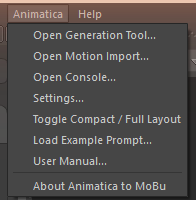
| Item | What it does |
|---|---|
| Open Generation Tool… | Opens (or re-focuses) the main tool window — the numbered workflow cards. |
| Open Motion Import… | Opens the Motion Import window for loading a clip from a file. |
| Open Console… | Opens the Console — the timestamped log of everything the tool does. |
| Settings… | Opens the Animatica Settings window — see Settings. |
| Toggle Compact / Full Layout | Flips the main window between its two layouts — the same as the switch in the window header. See Compact & Full layout. |
| Load Example Prompt… | Lists the example prompt files that ship with the plugin; the chosen file's prompt blocks are inserted at the playhead and any blocks already on the timeline are kept. The chooser is modeless — MotionBuilder's viewport and timeline stay live while it is open, so you can scrub to the frame you want to insert at without closing it. The folder is rescanned on every open, so files you drop in appear without restarting MoBu. |
| User Manual… | Opens this documentation in your default browser. |
| About Animatica to MoBu | Version and short description. |
Settings, Motion Import and Console are native MotionBuilder tools: they dock into your layout like any other panel, reopen in place, and each of them keeps sharing the main window's state — a setting changed in one is live in the others at once.
#Opening from the Python Editor
import animatica_to_mobu
animatica_to_mobu.show_ui()   # opens the dock window