Docs / Getting started / Posing
Posing
The Autopose tool and its handles: drag, pin and turn them, and set up the hands, the Look-at and the Handle Picker.
The Autopose tool poses the whole body from a few handles. You drag a handle; the handles that are on hold their joints; the pose model places everything in between. You never pose bone by bone, and nothing is added to your rig: the handles are drawn by Marionette, not made of bones.
#The Autopose tool
Click Autopose on the floating bar. Marionette selects your character, switches to Pose Mode and makes Autopose the active tool. It is also in the toolbar on the left, after Blender's own transform tools.
Click Autopose again, or pick another tool, to go back. The pose and the keys stay as they are.
In practice: with no handle picked,
GandRstill work on the bones as they always do. A press on empty space and a drag still box-selects bones.
#The handles
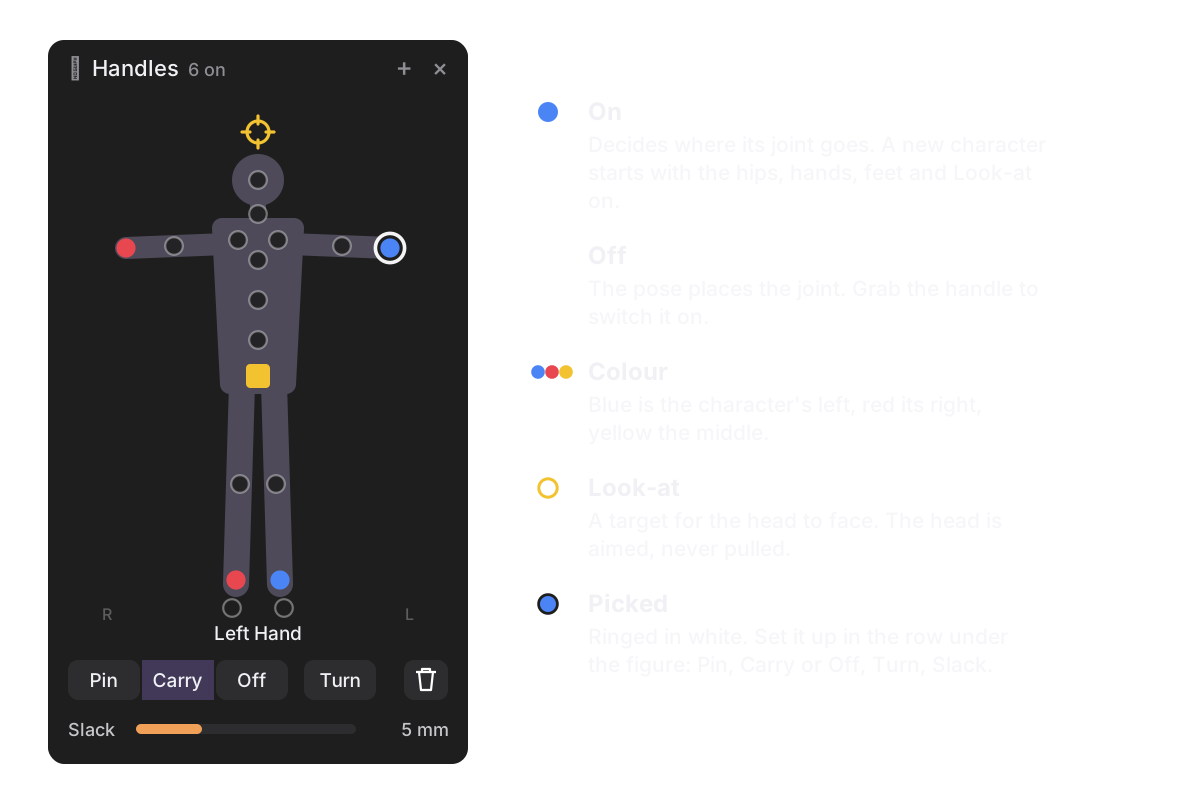
A new character starts with six handles on:
- Hips, the yellow square at the middle of the body
- Left Hand and Right Hand
- Left Foot and Right Foot
- Look-at, a target in front of the head
Every other handle the rig can have is there too, switched off and drawn as a faint ring: the chest, the spine, the neck, the head, the collarbones, the toes, the knees and the elbows. Grab one to switch it on. The ring on the ground is the root, which moves the whole character.
A handle that is on decides where its joint goes. A handle that is off follows the body, and the pose model places that joint on its own.
#Dragging
Drag a handle to move its joint. The other handles that are on hold their joints, and the body is re-posed around the move as you drag.
| While dragging | What it does |
|---|---|
Shift | Move the whole body with the handle |
Alt | Move only this limb |
Esc or right-click | Cancel the drag |
When you let go:
- With Auto Keying on, the pose is keyed at this frame, and the frames around it follow (see Editing motion).
- With Auto Keying off, the pose stays as you posed it until the frame changes, as a pose made with
GorRdoes. PressIto key it.
One drag is one undo step.
#Pinned or carried
A handle that is on either stays pinned in place or is carried with the body:
- Pinned: the joint stays exactly where it is in the world while you drag the rest. Use it for a planted foot or a hand on a table. The feet start pinned, and every handle you drag stays pinned where you put it.
- Carried: the joint keeps its place on the body and rides along when the body moves, like a hand that goes with the chest.
Press P to pin the picked handles, or to let them ride with the body again. Alt+P lets go of every pin except the feet.
Right-click a handle for its menu: Pin in Place, Carry with the Body, Switch Off, Hold the Turn, Straighten and Remove.
#Picking and moving handles precisely
Click a handle to pick it. Shift-click adds it to the picks or drops it. Click empty space to unpick. Ctrl-click switches a handle on or off.
With handles picked, G moves them and R turns them, as Blender's own transforms do:
| Key | What it does |
|---|---|
X, Y, Z | Lock to an axis. When turning, press it again for the joint's own axis |
Shift+X, Shift+Y, Shift+Z | Move in the plane across that axis |
R again | Turn freely (trackball) |
| A number | An exact distance, or degrees |
Ctrl | Snap (5 degrees when turning) |
W, while turning | Turn the whole body |
Click or Enter | Confirm |
Esc or right-click | Cancel |
A picked handle also shows a gizmo, with arrows to move it along an axis and squares to move it in a plane.
#Turns
A handle can hold its joint's turn as well as its position. Rotating a handle switches this on by itself, and the picker shows it as a dot inside the handle. Hold the Turn in the right-click menu switches it on or off.
Alt+R straightens the picked joints: a hand back in line with its forearm, a foot with its shin, the head with the neck, the hips upright. They stop holding a turn of their own.
#The Look-at
The Look-at aims the head. Drag it to where the character should look, and the head turns to face it. The head is aimed, never pulled, so the body is not dragged toward it.
#Knees and elbows
The knee and elbow handles start off. Drag one and it switches on: the joint goes where you put it, the leg or arm bends for it, and the hips come along if they need to. With the hip and the foot held, dragging a knee turns the leg to point the knee.
#The root
Drag the ring on the ground to slide the whole character along the floor, its pose as it is. Use the axes on its gizmo for one direction (Z lifts it). Click it, then press R to turn the whole character about the hips, or G to move it.
#Hands and fingers
Pick a hand and its fingertips get small handles. Drag a fingertip to curl that finger. Hold Shift to curl the whole hand.
Press F, or click Hand Poses on the bar, for a preset on the picked hand, or on both hands when none is picked:
| Preset | The hand |
|---|---|
| Relaxed | A hand at rest, the fingers a little curled, more toward the pinky |
| Grip | Closed round a handle: a sword, a bat, a rifle's grip |
| Fist | Closed tight, the thumb across the fingers |
| Point | The index finger straight, the others curled in |
| Pinch | The thumb and index fingertips together |
| Spread | Straight and fanned out |
| Flat | Every finger straight |
A hand still flat from the import relaxes the first time you pose it, since a dead-straight hand reads as a mannequin. Esc on that drag gives the flat hand back.
#Mirror, reset and rest
- Mirror Pose (
Ctrl+Shift+M, or Mirror on the bar) flips the pose left for right about the character's own middle: what the left hand did, the right hand does. The character stays where it stands, and the hands swap too. - Reset to T-Pose (in Settings) puts the character back in its T-pose and every handle back as it starts: the hips, hands, feet and Look-at on, the rest off, only the feet pinned. With Auto Keying on, the T-pose is keyed.
- Rest Pose (in Settings) clears the pose on the character's bones.
Ctrl+Z undoes each of them.
#The Handle Picker
The Handle Picker is a card at the top left of the viewport: your character in a T-pose, seen from the front, with its handles where its joints are. Handle Picker on the bar shows or hides it. Picking a handle on the card picks it in the viewport too, and the other way round.
- Click a handle to pick it. Shift-click adds it to the picks or drops it.
- Double-click a handle to switch it on or off. With several handles picked, a double-click on one of them switches them all, so a whole limb goes in one go.
Ctrl-click switches a handle on or off.- Hover a handle to see its name and state in the line under the figure.
With handles picked, the row under the figure sets them up:
| Button | What it does |
|---|---|
| Pin, Carry, Off | Pinned in place, carried with the body, or off |
| Turn | Hold the joint's turn as well as its position |
| Slack | How strictly the pose keeps to the handle. Drag left to tighten (the joint goes exactly there) or right to loosen (the pose may move it a little) |
| Turn slack | The same for the turn, on handles that hold one |
| The bin | Remove the picked handles, so the pose decides those joints again |
The + on the card shows every handle the rig can still have, drawn where it would go. Click one to add it. It starts on its joint, and nothing moves until you drag it.
On a control rig, picking a limb's handle also shows that limb's IK and FK switch (see Your rig).
The card folds down to its title, and its cross hides it. Handle Picker on the bar brings it back.
#How the body follows
These are in Settings, under Posing. They are set once and left alone.
| Setting | What it does |
|---|---|
| Slack | How far a joint may stray from its handle, in metres (default 0.005). Low puts the joint where you put the handle. High makes the handle a hint the pose model may overrule to keep the body natural. It sets every handle at once; the Handle Picker sets them one by one |
| Solid Floor | No joint ends up below the floor. Anything that would is lifted out by turning bones about joints that stay put, so your pinned handles are not moved to do it |
| Foot Contact | A foot set down on something (the floor, a step, a box) lies flat on it rather than going through it. A foot up on its toes keeps its heel up |
| Body Follows | How much of the body follows a handle you drag. At 1 the body is re-posed around the move; at 0 only the limb you move changes. Alt while dragging is the same as 0 |
| Show Balance | Shows the centre of mass over the feet while you pose: green when the pose stands, orange when it would fall that way |