Docs / Getting started / Editing motion
Editing motion
Edit motion across frames with Reach, the onion skin, the zoetrope, the motion trail, the Smooth Brush, Lock in Place, Pick Up and the Motion Check.
Once a character has animation, Marionette edits it across frames. It works on any keyed animation: your own keys, a mocap take, or a take generated by Animatica Choreographer. Change one frame and the frames around it follow, re-posed by the pose model, so planted feet stay planted.
The Smooth Brush, Lock in Place, Pick Up and the Motion Check appear on the floating bar once the character has animation. Every edit is written straight into your keys, and Ctrl+Z (Cmd+Z on a Mac) takes it back.
#How far an edit reaches
An edit at one frame carries into the frames on either side of it and fades out with distance, as proportional editing does in Blender.
| Setting | What it does |
|---|---|
| Reach | How many frames on either side follow, 6 by default. At 0, only the edited frame changes |
| Falloff | How the edit fades over its Reach: Smooth eases out from the edited frame (a nudge, a reshaped arc), Hold keeps full strength over most of it and eases only at its ends (a raised hand that stays up), Linear fades evenly, Sharp is strong at the edited frame and falls off fast (an accent) |
| Intensity | How much the frames around the edit follow it. At 100% they get the full falloff; at 0% only the edited frame changes. The edited frame always gets the whole edit |
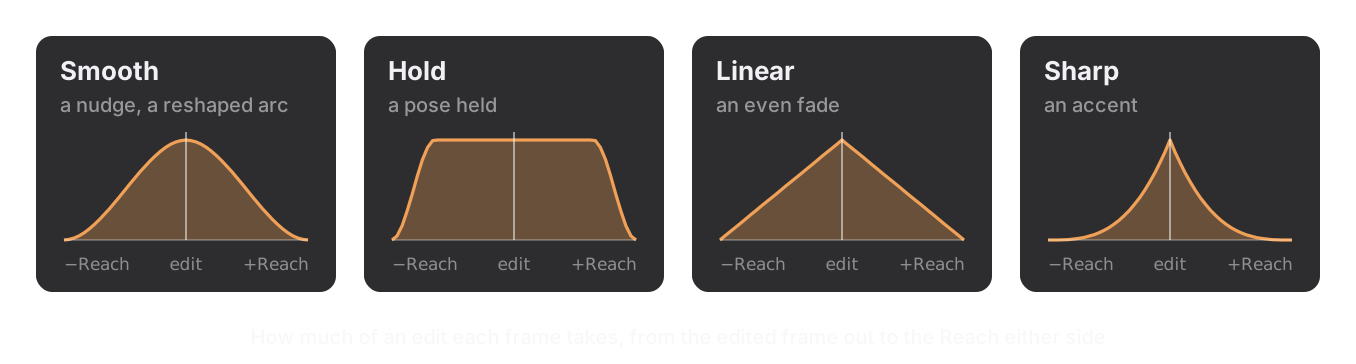
During any drag, the mouse wheel changes the Reach and F switches the Falloff. The header at the top of the viewport shows both.
While the Autopose tool and Auto Keying are on, the bar shows a Reach tile: the falloff curve with the number of frames. Drag it sideways for Reach, or up and down for Intensity. All three are also in Settings, under Editing.
A planted foot moves its whole step, not part of it.
In practice: a handle drag carries through the Reach when Auto Keying is on. With it off, the drag changes the frame you are on, as
GandRdo. On a control rig, a handle drag changes the frame you are on; drag the motion trail to carry an edit across frames.
#Onion skin
Onion Skin on the bar shows the motion around the playhead as ghosts, green before and blue after. They are exactly the frames an edit here reaches, so you see what a drag will move. Each ghost is as solid as the share of a drag it would take.
In Settings, under Onion Skin: Step (frames between ghosts), Opacity, Fade (ghosts further from the playhead fainter), and the Before and After colours.
#Zoetrope
Zoetrope on the bar spreads the onion skin out in space: earlier frames to one side, later frames to the other. Frames that overlap become readable side by side, and each one has its handles.
Drag a hand, a foot, the hips or the head on a slice to pose that frame without moving the playhead. The handles that are on hold their joints, the frames around it follow (the mouse wheel sets how far), and the pose is keyed at that frame. Shift moves the slice's whole body.
In Settings: Step (frames between slices) and Spacing (how far apart they are). Switching the zoetrope on switches the onion skin on.
#Motion trail
Motion Trail on the bar draws the paths of the hips, head, hands and feet, frame by frame, marked at every pose you keyed. Pick a handle to see its path alone. Good motion moves in arcs, and the trail shows where it doesn't.
- Reshape the path: click a point on a trail and drag it. That hand, foot, hip or head moves at that frame, the body is posed around it, and the frames around it follow. The pose is keyed when you let go, and the playhead does not move.
Shiftmoves the whole pose instead of the one joint. - Retime it: a picked point has an orange handle along the trail. Slide it, or hold
Altwhile dragging the point, to move the point along its path: the motion gets there sooner or later.
Colour by Speed, in Settings, colours the trail by how fast each joint moves: blue where it slows, white at its usual pace, orange where it rushes. A stall, a rush or a pop shows at a glance.
#Smooth Brush
Smooth Brush on the bar paints jitter out of a take. Paint over the motion trails, and the motion under the brush is smoothed: the closer to the brush's middle and the more passes, the smoother. The feet stay planted, and the wrist and forearm stay calm.
The orange preview is exactly what a stroke will change.
| While brushing | What it does |
|---|---|
| Mouse wheel | Brush size |
Ctrl+wheel | Brush strength |
Right-click or Esc | Done |
Each stroke is written into the keys. Brush Size and Brush Strength are also in Settings.
#Lock in Place
Lock in Place holds a hand or a foot on one spot for a stretch of frames, so a planted foot stops sliding.
- Click Lock in Place on the bar.
- Click the hand or foot that should stay put. With one already picked, Marionette uses that one.
- The frames start as the contact around the playhead: the frames where the joint is nearly still. Move the mouse to set where the lock ends, or hold
Ctrlto set where it starts. - Click to lock it.
The joint is held by its own leg or arm: the knee bends the way it already bent, the foot keeps its turn, and the hips are left alone. The lock eases in and out over a few frames either side, so the foot lands and lifts off instead of snapping.
A lock shows as an orange band over its frames in the Timeline and the Dope Sheet. Every lock is listed in Settings, with its frames and a button to remove it. To take a lock off, pick the locked hand or foot on a frame it holds and click Lock in Place again: its frames get their motion back as it was. A drag inside a lock's frames keeps the locked joint where it is.
Esc cancels while you set one up.
#Pick Up
Pick Up puts the character's hands on an object and carries it with them.
- Click Pick Up on the bar, then click where one hand takes the object.
Tabswitches to the other hand. - Click where the other hand takes it.
Enteraccepts the place shown;Backspaceholds it in one hand. - Each hand is drawn where it will hold, named. Turn it on the object with
Rand the mouse (X,Y,Z: about the handle, the fingers, the palm),Fflips it, and1to5leave a finger open.Tabpicks the other hand. PressEnterwhen they are right. - Move the mouse left and right to set the frames where the hands take the object and let it go, then click.
The body is re-posed to get the hands there, the feet stay where they were, and the object is keyed to follow the hands until it is let go. Thin parts (handles, bars, hilts) are wrapped, and thicker ones held between the palms.
The grips are kept on the object. A held object shows as a band on the Timeline, and Pick Up on it again lets you turn its hands. Ctrl+Z takes a Pick Up back, and Esc cancels while you set one up.
Note: a hand you drag after a Pick Up doesn't carry the object with it yet. Run Pick Up again.
#Motion Check
Motion Check on the bar finds what is wrong with the motion and fixes it. The button shows how many problems it found.
It looks for:
- Slides: a foot that wanders while it stands
- Floats and sinks: a planted foot off the floor or into it
- Pops: a bone or a joint that jumps on one frame and comes back
- Shaking: a stretch where a joint jitters
Click the button for the list. Each row has the problem's frames (click them to go there), what is wrong, and Fix. Fix All fixes every one; tick some rows and it becomes Fix Selected, for those only. The cross on a row marks it Not a Problem, for a fast move that is meant to be fast, and hides it for this take.
What it finds is marked where you look: a band over its frames in the Timeline and Dope Sheet (red a slide, blue a float, amber a pop or shaking), and, on those frames, a ring on the joint in the viewport. Show Problems switches the marks off, and Selected Only marks just the ticked problems.
Each fix is written into the keys, and Ctrl+Z takes it back.
#Energy
The Energy slider, under the Motion Check's list, changes how much life the whole motion has. Above 1 is snappier: sharper starts and stops, more bounce. Below 1 is calmer. The feet keep their plants.
Energy is written into the keys. Setting it back to 1, while nothing else has changed, takes it off, and Ctrl+Z does too.