Docs / Getting started / Compact & Full layout
Compact & Full layout
One switch hides the rarely-touched controls without resetting them; a hint names what is hidden but still active.
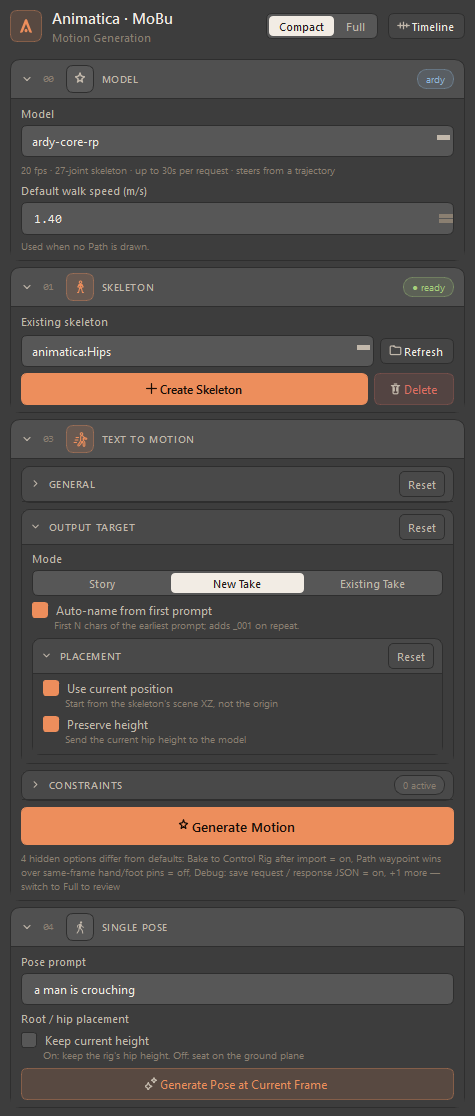
The main window has two layouts. Full shows every control. Compact hides the rarely-touched containers inside each card and leaves the workflow on screen — pick a model, pick a rig, write a prompt, Generate.
Switch with the Compact / Full segment in the window header, or with Animatica → Toggle Compact / Full Layout. The choice is remembered across sessions. The Settings window has a switch of its own, on its own flag, so folding the main window leaves the Settings groups alone and the other way round.
#Compact hides, it never resets
Switching is show/hide on the same controls — nothing is rebuilt and no value changes. A window switched to Compact and back presents exactly the values it had, including ones you set through a control Compact took off screen.
That also means hidden is not gone: a control you cannot see keeps working. So whenever a hidden option is off its default, a one-line hint appears under Generate Motion naming it — "3 hidden options differ from defaults: Num samples = 2, CFG weight (constraint) = 4, … — switch to Full to review". The line is silent when everything hidden is at its default, which is what makes it worth reading when it appears. Display-only settings (namespace, the canonical-rig filter, the path-length and marker-name toggles) are never reported, because they cannot change the result.
#What folds
| Card | Hidden in Compact | Stays on screen |
|---|---|---|
| Model | Nothing. | The dropdown, the facts line and any model-specific knob. |
| Skeleton | Canonical-only filter, Namespace, Create new skeleton on generate, Adopt, Link to model rig, the HIK status line. | The picker, Refresh, Create Skeleton, Delete. |
| Text to Motion | The whole Advanced sub-section, Ground, Layer & Rig. | General, Output Target with its Mode and take/story rows, Placement, the Constraints sub-card, Generate Motion. |
| Constraints | Convert Animkeys, the keyframe row, the path display toggles, Prev / Next. | The type picker and Add Constraint. |
| Single Pose | Use current position, Auto apply as constraint, Key pose. | The prompt, Keep current height, Generate Pose. |
| Settings (own switch) | Story & Naming, Non-canonical rigs, Debug, Extra options. | Connection, Interface, Keyboard Shortcuts. |
| Prompt Timeline | Nothing — the timeline window is never compacted. | Everything. |
When to use which — Compact is the everyday layout once a scene is set up: everything that decides what is generated and where it lands stays in view. Switch to Full when the hint under Generate names something you want to change, when you adopt or link a rig, or when you are tuning Advanced parameters.