Docs / Getting started / Your rig
Your rig
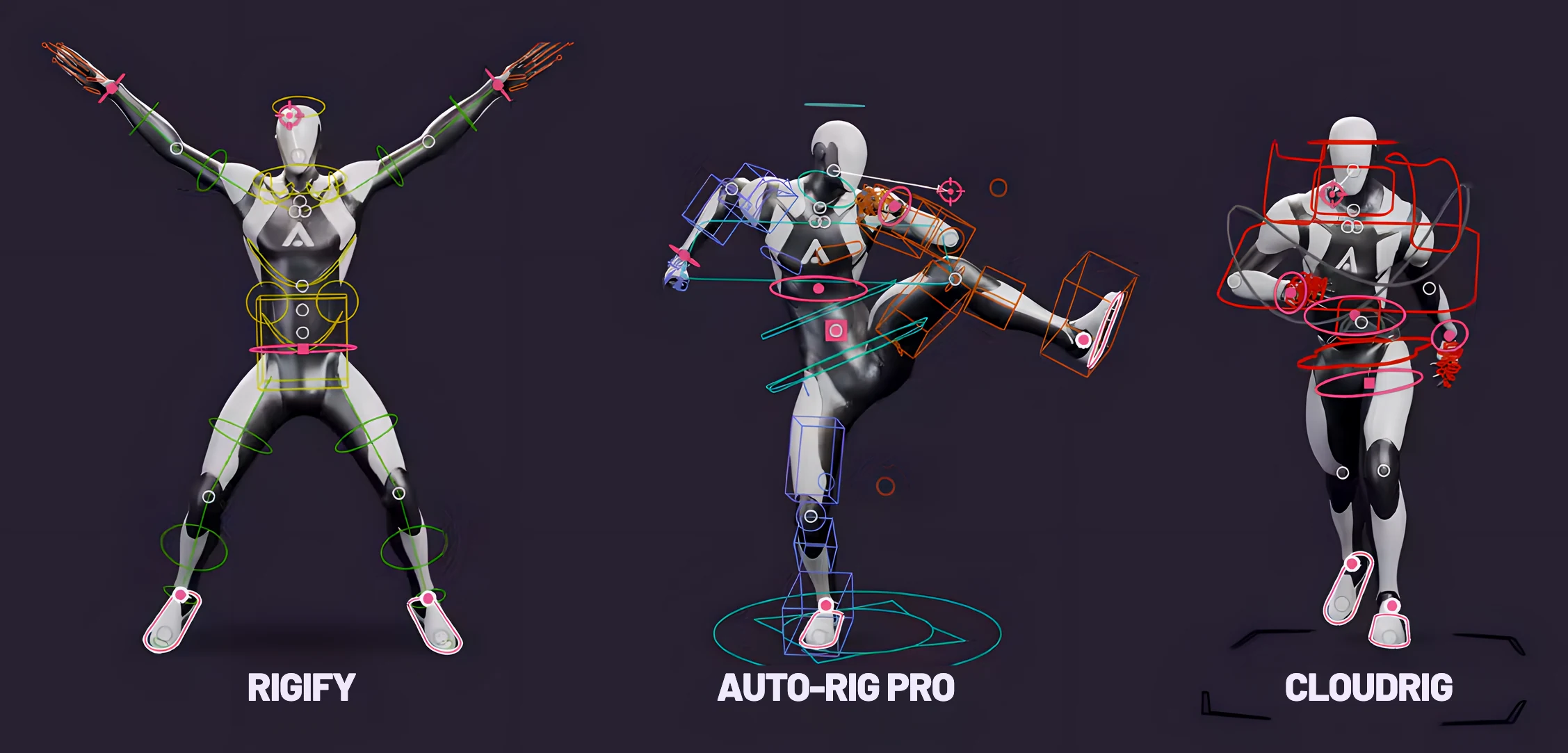
Rigify, Auto-Rig Pro, CloudRig and Mixamo: how Marionette poses each, IK and FK, and the rig map.
Marionette poses the rig you already have. It works with:
- Rigify, Auto-Rig Pro and CloudRig control rigs. Marionette poses their FK controls and never moves an IK target or pole on its own.
- Mixamo characters, as they download. Marionette finds the skeleton by its shape, and nothing is renamed.
It also comes with the Animatic character, so you can try it before you open your own rig: Add → Animatic Character, or Add Character on the floating bar in a scene with no armature.
Marionette adds no bones or constraints to your rig. Poses and edits land as ordinary keys, which you can select, retime and delete like any animation, and Ctrl+Z takes any edit back.
#Mixamo characters
On a Mixamo character, Marionette poses the skeleton's bones directly.
In Settings, under the character's name:
- Rig In Front draws the rig in front of the mesh.
- Hide Skeleton hides the deform bones so only the handles and the character show. It changes only the display; the bones are posed either way.
#Control rigs
On a Rigify, Auto-Rig Pro or CloudRig rig, Marionette poses the rig through its own controls, never its skeleton. The pose is solved on the rig's real skeleton and set on its FK controls, and the keys go on those controls. The editing tools (the trail, the zoetrope, the Smooth Brush, Lock in Place, the Motion Check's fixes, Energy and Pick Up) read the motion from the rig as it plays and write their keys on its controls too.
#IK and FK
Marionette poses through FK. A limb in IK (a generated Rigify rig starts that way) is switched to FK the first time Marionette poses it. Its FK is matched to the pose first, so nothing moves, and with Auto Keying on the switch is keyed. A limb whose IK carries animation of its own is left in IK, so the rest of the take stays as it was.
- IK or FK per limb: pick a limb's handle and the Handle Picker shows that limb's IK and FK. They are in Settings too. The other mode is matched first, so nothing moves, and with Auto Keying the switch is keyed.
- Keep IK and FK Matched (Settings, on by default): at the end of each edit, each limb's other mode is set to the same pose. The IK target goes where the hand or foot is, and the pole out from the elbow or knee, as the rig's own IK/FK snap places it. With Auto Keying they are keyed too, so switching between IK and FK never jumps.
#Rig Controls
While the Autopose tool is on, the rig's own controls are hidden in the viewport, so the handles are the controls. Rig Controls, on the bar and in Settings, shows both. Any other tool brings the controls back. Only the viewport's display changes, never the rig.
#Selection both ways
Picking a handle selects the rig controls it drives, in the limb's current mode, so the Graph Editor shows the curves you just keyed. Making one of those controls active picks its handle.
#The rig map
On Auto-Rig Pro and CloudRig, Marionette connects the rig's IK by asking the rig how its controls work: it moves each control a little, watches which bones follow, and puts everything back. Nothing on your rig is changed. If Settings says IK not matched at keys, click Connect Its IK.
What it found is the rig's map. Settings shows it as Rig Map, with how closely it poses the rig:
- Test Rig Map poses the rig into random poses it can reach and back again, and says how close every joint came.
- Edit opens the map in Properties → Armature → Marionette Rig Map, where any control can be set by hand.
- The refresh button connects the rig again, and the cross forgets the map.
In Properties → Armature → Marionette Rig Map, Export… saves the map to a file, and Import… connects another copy of the rig with it, corrections and all, so a team shares one map. Save to Library keeps a corrected map in your rig library.
The map is kept on the rig and in your rig library, so the same rig connects itself in your other files.
#Which bone is which joint
Marionette finds the hips, spine, arms, legs and head from the rig's shape. Settings → Skeleton shows which bone plays each joint. If a rig's shape is unusual enough to fool it, set a joint's bone by hand there (Edit Joints). The refresh button finds them again from the shape, replacing any set by hand.